
Keeping an Experience Cloud site up to date across multiple languages gets complicated as pages evolve and content changes.
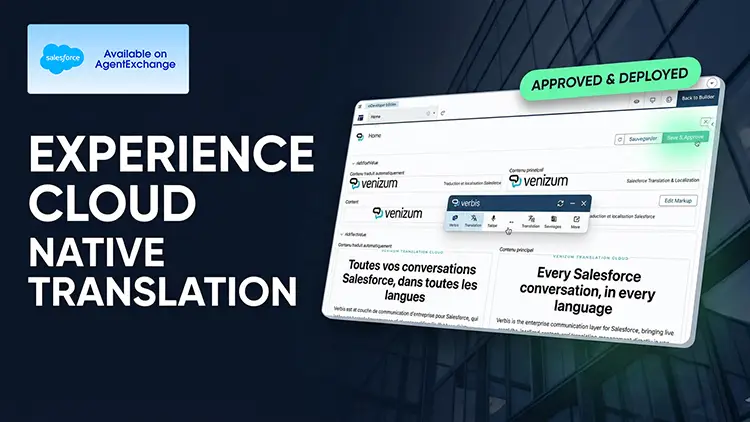
Verbis Direct Translation lets you manage Experience Cloud translation directly within Salesforce, from translation through review to deployment.
In this demo, we translate an Experience Cloud page from English into French, step by step.
What you’ll see:
- Starting a page translation from the Verbis sidebar
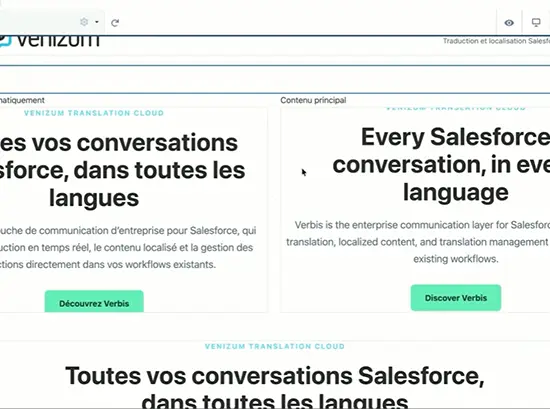
- Automatic detection and translation of eligible content, including text created with the HTML editor
- A side-by-side review workspace with the original and the machine translation
- Glossary management that keeps product names and key terms consistent
- Preserved formatting, with edit markup for formatted content
- Save, approve and deploy to the live site
- Previewing the translated page exactly as site visitors see it
With Verbis, you can manage translations per page and per language, so your multilingual Experience Cloud content stays consistent without leaving Salesforce.
Yes. Verbis manages Experience Cloud translation directly in Salesforce, from translation through review and deployment. You start the translation of a page from the Verbis sidebar after selecting the target language in the standard Salesforce language selector.
Verbis automatically identifies the eligible content on the page and translates it, including standard text and content created with the HTML editor.
Yes. The original content and the machine translation are shown side by side, so the translator can review everything and make changes directly in the same workspace. When the review is done, you save and approve the translation before it is deployed to the site.
Yes. The original formatting and structure are preserved throughout the translation, and edit markup lets the translator adjust formatted content without breaking the layout. Glossary management keeps terminology, product names and key terms consistent across every translation.
No. Verbis lets you manage translations for individual pages and languages as needed. After deployment, you can use Preview to switch language and see the translated page exactly as site visitors will see it.