
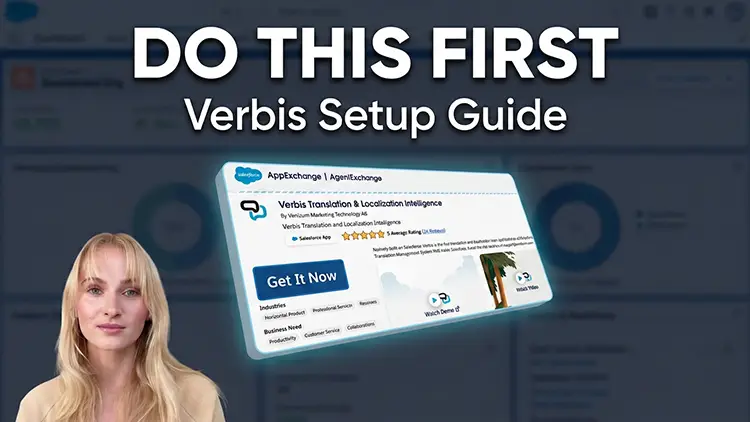
This video shows how to install and configure the Verbis Base Package inside Salesforce.
Verbis is the native translation solution for Salesforce, and this tutorial gives you a quick overview of how to set up the base package so you can start managing translations directly in your org.
In this tutorial, you will learn:
- How to install and configure the Verbis Base Package
- How to add languages inside Salesforce
- How to add translation exceptions to your glossary
This video is for Salesforce admins who want a simple setup guide for translation inside Salesforce.
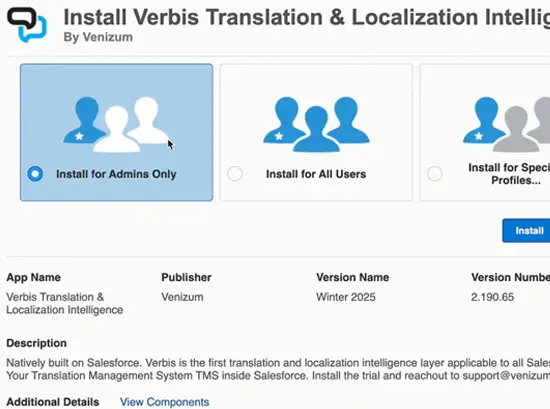
Find Verbis on the Salesforce AppExchange and choose “Get It Now”. Log in with the credentials for the environment you want to install in, enter the verification code you receive, agree to the terms and conditions, and confirm the installation. We recommend choosing “Install for Admins Only”, so the admin can give access to other users later.
Only the person who will configure Verbis needs access to begin with. Go to Permission Sets in Setup, open “Verbis Translation Admin”, select Manage Assignments and add that person. No one else needs to be added at this stage.
Open the Verbis app from the App Launcher and go to Verbis Admin. Select the translation engine you want to use and press “Test Connection” to make sure everything is set up correctly.
Yes. The Translation Studio comes with a template for English, French and German. To add more languages, go to Translation Templates and add a new language under Versions.
Yes. Under Translation Exceptions you can add words manually or import them from a file, and set exactly how each word should appear in a specific language. This is useful for product names, brand terms and other words that must stay consistent.